 The BEE SuiteChildcare CRM & OperationsAll guides
School Data Clean-Start Guide
Use this checklist for either a reviewed import or a clean workspace. You confirm what is correct, missing, or needs correction; you are not expected to repair source files, create placeholder records, or guess.
Start entering families
Every school should have a director responsible for its roster. If records already exist, complete and verify them. If an import is planned or underway, coordinate missing records with the import owner before entering the same families again.
- Confirm your school and starting point. Open School setup. Keep the existing import path when moving records from another system. Use the clean workspace path when entering records directly; this does not erase existing records. Set up classrooms before adding enrolled children.
- Gather the current enrollment records. Have each child's legal name, birth date, enrollment status, start date, classroom, scheduled days and times, guardian names and contact details, emergency contacts, authorized pickups, safety information, and signed permissions available. Record missing information for follow-up; do not guess.
- Search before adding. In the Family Workspace, check the Family Directory and past enrollment records. Open an existing family to add siblings or additional guardians. Do not recreate imported families.
- Add the first household. Open Add Family, Parent + Child. Confirm School / center, enter the primary guardian and child, choose the correct classroom and enrollment status, and select Save Family, Parent + Child. Leave prior balance blank unless a separately approved, verified opening balance must be recorded. Verify permission checkboxes against signed records.
- Finish the household. After the Saved message, open Complete this family's details. Add the remaining guardians and children, emergency contacts, authorized pickups, allergies, medical information, schedules, and required documents. A saved intake is the beginning of the record, not a completed school review.
- Continue through the roster. Use Start next family to clear the previous household before entering another. If a save cannot be confirmed, check the directory for the child before trying again. Work classroom by classroom and compare both family and child totals with the current roster.
- Report progress and resolve gaps. Record the expected and entered family/child counts, unresolved items, responsible person, and next follow-up date. Return to School setup to review gaps and confirm the school's data only when the review is complete.
These workspace links require your existing authorized login. Record counts show progress; they do not prove completeness without comparison to the school's roster. Keep child and family details in the secure workspace, not in general setup notes or progress messages.
Before you begin
Have these ready
- Your current BEE Suite director access
- The saved data starting point for the correct school
- For an import: the current source package and packet marked READY_FOR_DIRECTOR_REVIEW
- For a clean start: the actual enrollment roster, or confirmation that no current families are expected
- A place to record corrections, owners, and recheck results
Stop and escalate
- Another school's information is visible
- A child, guardian, or relationship is ambiguous
- Safety, custody, tuition, or balance evidence conflicts
- An imported record's source or as-of date is missing
Step-by-step checklist
Complete the steps in order. Keep anything unsupported or unclear open for correction.
- 1
Confirm you are reviewing the right school
- Sign in through the Director workspace and confirm the school name shown on the page.
- Open School setup and confirm the saved starting point says Move Existing Records or Start With a Clean Workspace.
- For an import, confirm the school packet says READY_FOR_DIRECTOR_REVIEW and matches the source date. For a clean start, confirm no prior roster is expected and use only real enrollment records.
Stop condition: Stop if you see another school's records, the saved path is wrong, or an import packet is not ready or does not match.
- 2
Review the current roster
- Compare current children and families with the school's current roster.
- Confirm each child has the correct enrollment status and classroom.
- List missing children, duplicate records, and former or withdrawn children that appear current.
Stop condition: Do not delete, merge, or guess. Record the issue for correction.
- 3
Check family and child relationships
- Confirm each child is connected to the correct family and guardians.
- Check guardian names, relationships, email addresses, phone numbers, and linked children.
- Review emergency contacts and authorized pickup people separately from guardians.
Stop condition: Stop if a relationship is unclear or one email appears to belong to conflicting adults or families.
- 4
Review safety-critical information
- Check allergies and severity, medical conditions, medications, emergency contacts, authorized pickups, and custody restrictions.
- Compare every safety item with the school's source record.
- Treat a blank field as not yet confirmed—not as proof that none exists.
Stop condition: Escalate any missing, conflicting, or unclear safety information before attendance or pickup is activated.
- 5
Check classrooms and schedules
- Confirm each current child has the correct classroom or age group.
- Confirm scheduled days and any full-time or part-time designation shown in the source.
- Record schedule details that cannot be proven from the source or enrollment record instead of filling them in from memory.
Stop condition: Do not assume five days or a classroom when the source is incomplete or ambiguous.
- 6
Check tuition and opening balances
- Confirm each child's tuition amount, billing schedule, description, and effective date.
- For an import, confirm each opening balance has an as-of date and supporting source. For a clean start, confirm there is no opening balance unless a real dated charge or credit supports it.
- Keep parent responsibility separate from agency or subsidy responsibility.
- Compare current-only totals with current-only totals and all-record totals with all-record totals.
Stop condition: Do not approve billing when an amount, date, payer, schedule, or total cannot be reconciled.
- 7
Spot-check and document corrections
- Review at least 10 current families from start to finish, or every current family when the school has fewer than 10.
- For each issue, record the child or family, what is wrong, the source evidence, who owns the correction, and the result after rechecking.
- Use VERIFIED, NEEDS CORRECTION, MISSING SOURCE, or NOT APPLICABLE for each review item.
Stop condition: A correction is not complete until it has been checked again against the source.
- 8
Complete the readiness decision
- Confirm roster, relationships, safety, classrooms, schedules, tuition, balances, and exceptions have each been reviewed.
- Sign and date the director review only when the school-data review is complete.
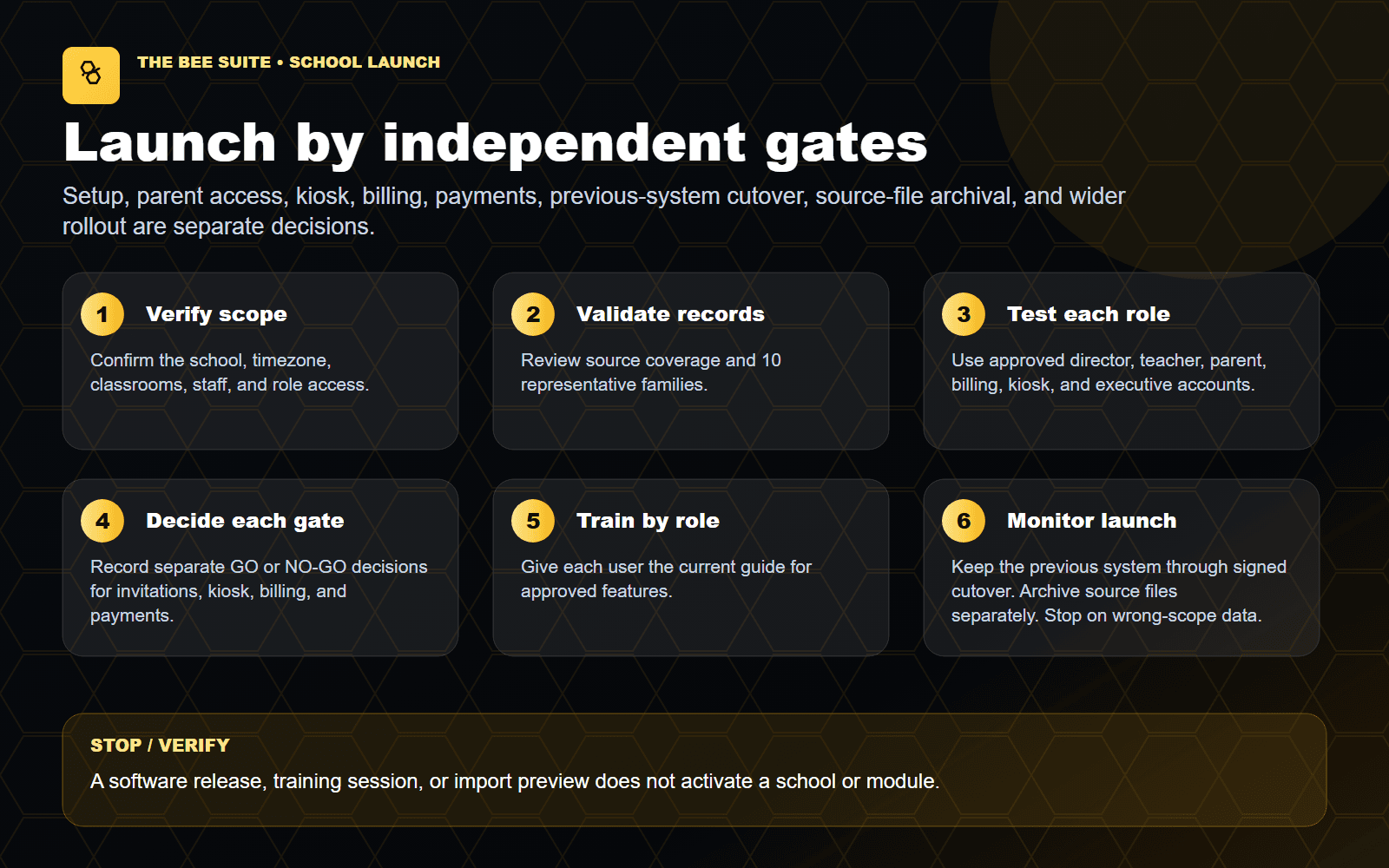
- Keep invitations, user access, kiosk/PIN, attendance, billing, payments, messaging, and ProCare cutover as separate approvals.
Stop condition: School-data approval does not turn on any other launch gate.
Frequently asked questions
What if this is a brand-new school with nothing to import?
Choose Start With a Clean Workspace in School setup. Add only real enrollment records, or explicitly confirm that no current families are expected yet. Do not create placeholder people or an empty import.
Am I expected to fix the export files?
No. Directors verify what is right or wrong and provide the source evidence. Do not edit import files or guess which record should win.
What does READY_FOR_DIRECTOR_REVIEW mean?
It means the technical review packet is ready for your school-level verification. It does not mean the data is approved or that the school is cleared to launch.
What if a field is blank?
Mark it MISSING SOURCE or NEEDS CORRECTION as appropriate. A blank field is not proof that the school has no allergy, pickup restriction, balance, schedule, or other item.
What if the BEE Suite and the previous system do not match?
Record the exact difference and identify the dated source that should be used. Keep the item unresolved until it is corrected and checked again.
Should I create a duplicate when a family or guardian looks wrong?
No. Stop and report the existing record. Duplicates can split children, balances, invitations, and payment history.
How many families should I spot-check?
At least 10 current families, chosen across classrooms and billing situations. If the school has fewer than 10 current families, review all of them.
Do I include agency or subsidy money in the parent's balance?
No. Parent responsibility and agency or subsidy responsibility must stay separate.
Does accurate data mean we can send parent invitations?
No. Parent invitations and access require their own approval after identity and relationship checks are complete.
Does this approve billing or payments?
No. Billing setup, opening balances, payment collection, Stripe readiness, and the billing cutover each remain separate gates.
When can ProCare be retired?
Only after written cutover approval and all required operational gates are complete. A clean data review by itself is not permission to retire the previous system.
Final director sign-off
Sign off only when every school-data item is verified or has a documented resolution—or when a new school has explicitly confirmed that no current families are expected yet. This sign-off does not activate invitations, access, kiosk/PIN, attendance, billing, payments, messaging, or ProCare cutover. A cutover from any other prior system is equally separate.